
How do Eyedro products work?
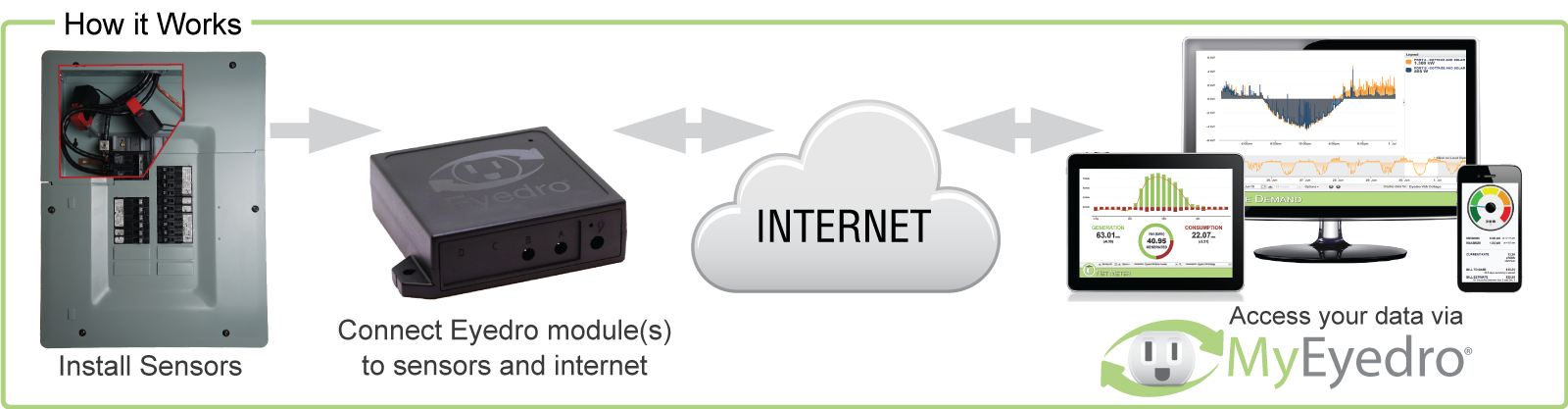
Eyedro devices collects data from various electricity, pulse, gas, water or temperature sensors and transmits the data, through the provided internet connection, to the MyEyedro Cloud for storage, analysis and presentation.
How close to 'real-time' is the data in the MyEyedro portal?
Measurement resolution is 1 second with measurement data typically buffered and uploaded to the MyEyedro cloud service every 30 sec to reduce bandwidth overhead.
However, when a user is logged into their MyEyedro account, the data is uploaded as quickly as it is collected (every 1 sec) so the user experience is near real-time. Eg. A user can turn a light switch on and see the results on their PC or mobile browser within approximately 1 second.
Will an Eyedro product work without an internet connection?
All Eyedro products are designed to take advantage of the MyEyedro Cloud services – thus requiring the product(s) to be connected to the internet at all times.
In addition, most products include a local web server which can be used to view and/or retrieve measurement data directly from the device.
What happens to my data if my building loses internet connectivity?
There is a small amount of internal memory to store data in the event of a temporary disruption to your internet service.
Will your wireless products work with my WiFi router?
All Eyedro WiFi connected products communicate via 2.4 GHz WiFi.
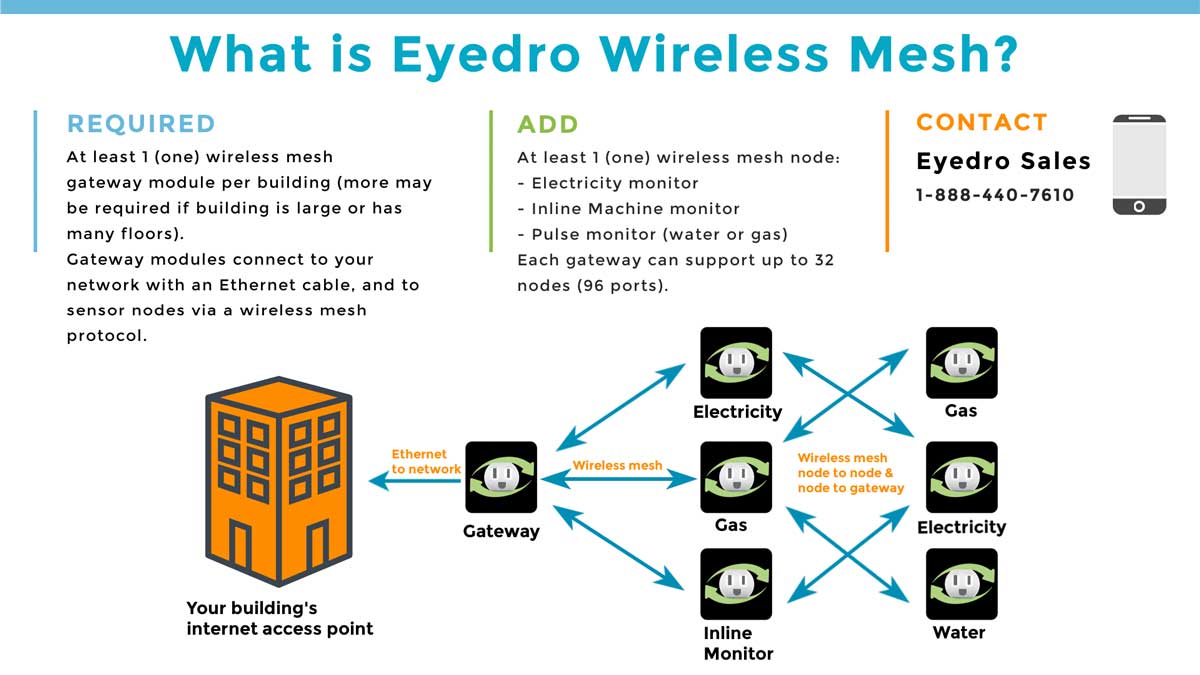
The Eyedro Wireless Mesh products do not communicate using the WiFi protocol. They use a custom wireless protocol to communicate between modules and the gateway module plugs into a physical Ethernet port, on your router or switch, to access the internet.
How much data is typically used by the Eyedro?
In a typical residential environment Eyedro devices consume on average 3 – 5MB of data per day.
What kind of warranty does the product come with?
Where is the product made?
Eyedro products are designed and manufactured in Ontario, Canada.
Do you ship outside of North America?
Yes, Eyedro ships worldwide.
Eyedro supports plug types A and C which covers North America and parts of Europe.
Eyedro products are shipped with type A power adapters suitable for North American 120V, 60Hz power. For 220V-240V, 50Hz power please request a European Type C power adapter when you place your order on eyedro.com.
Please contact Eyedro Sales for information on power adapter availability beyond types A and C.
Can I monitor electrical services larger than 200A with your product?
Yes. All electricity monitoring standard products come with sensor that are rated for 200A maximum. However, you can substitute the 200A sensors with higher rated sensors (up to 5000A) on our Eyedro 3-Phase Electricity Meter products.
How accurate is your 3-Phase Electricity Meter compared to my utility meter?
Eyedro devices are engineered for high-precision energy monitoring. Most customers find that Eyedro measurements correlate almost exactly with their utility billing data.
Because Eyedro measures voltage and current directly at the source, it accounts for power factor and phase shifts that cheaper “estimated” monitors miss. To maintain maximum accuracy, ensure that CTs are installed in the correct orientation and that the MyEyedro cloud settings match your site’s voltage configuration. Detailed accuracy ratings for our various sensor types can be found in the Specifications section of the product documentation.
What is wireless mesh?
Eyedro wireless mesh systems use a custom wireless protocol to communicate between modules. Systems require at least 1 gateway module, connected to a physical Ethernet port on your network, and 1 or more wireless mesh node sensor modules collecting data.
Frequently Asked Questions when installing Eyedro Electricity Monitoring products
Do I need to configure my router to connect Eyedro products to the internet?
How do I assign a static IP address to my Eyedro device?
Eyedro modules are configured to use a dynamic IP address by default, and receive the IP address from the DHCP server already on the local network (the most common network configuration).
If you prefer to set a static IP address on the Eyedro module (or have no DHCP server), please contact Eyedro Support to request assistance. We will require the following 5 pieces of network information for each Eyedro module: The static IP address, subnet mask, gateway IP address, DNS1 IP address, and DNS2 IP address. We will also require your MyEyedro username and the serial number of the module(s).
Please note that even after the Eyedro module is set to use a static IP address, upon reset it will still look for a DHCP server and use a dynamic IP address if possible. The static IP information will be used after the module has confirmed there is no DHCP server available. This feature allows the same module to be moved back to a dynamic IP address at any time without further configuration.
Our network is protected by a firewall. Will that be an issue?
Can I plug my Eyedro device into an Uninterruptible Power Supply (UPS)?
For electricity monitoring devices, No. While it is safe to do so, plugging your Eyedro’s power adapter into an Uninterruptible Power Supply (UPS) will result in incorrect measurements.
For all other Eyedro products, Yes. Any product that uses a 5VDC power adapter can be plugged into a UPS.
Refer to the documentation for your Eyedro model for more information.
Why do your products use 2.4GHz WiFi?
Even though 5GHz and 6GHz are much faster, 2.4GHz provides better range for two reasons:
-
Penetration: Lower frequencies pass through solid objects (drywall, wood, glass) more effectively than shorter, high-frequency waves.
-
Attenuation: Higher frequencies lose energy faster when they hit an obstacle.
Regarding data speed, 2.4GHz is slower. However, it provides far more bandwidth than is required for sensor data collection.
Electricity Monitoring: Does this product need to be installed by an electrician?
Electricity Monitoring: How does the Eyedro Home Electricity Monitor attach to my electrical service?
Full installation instructions can be found in the Eyedro Product Guide or Tutorials: Eyedro Hardware Installation.
Electricity Monitoring: Can I monitor my solar installation?
Yes. You can monitor the output of a solar installation on the AC output side of the inverter.
A full Net Metering solution, for measuring both electricity consumption and generation, requires four sensors total (two EYEDRO-HOME systems). Two sensors will be installed on the main service entrance, measuring consumption, and two sensors will be installed on the AC output of the inverter measuring generation. For a grid tied installation, throughout the day, if your system generates more power than you consume, you would expect to see negative data on your main service entrance indicating that you are feeding power back into the electricity grid.
MyEyedro Cloud has a plugin and report intended specifically for Net Meter data presentation.
Electricity Monitoring: What are the physical dimensions of the Eyedro sensors?
The default 200A Split-core CT:
I.D. (opening) = 19.0mm (0.75″)
O.D. = 58.0mm (2.28″)
Thickness = 20mm (0.79″)
Other sensor options are available. See the product guide for physical dimensions
Electricity Monitoring: What gauge of wire can the sensors be attached to?
The 200A sensors provided with most products, have a 0.75″ (19mm) opening and can fit around a typical 3/0 (000 AWG) or 250 MCM insulated copper/aluminum wire.
Other sensor options are available. See the product guide for opening dimensions.
Electricity Monitoring: For Eyedro 3-phase monitors where should I plug in the device's power adapter?
All Eyedro Electricity monitors, 3-phase or single-phase, must be powered via a circuit that is downstream of the panel where the current sensors are installed for accurate measurements.
Refer to the documentation for your Eyedro model for more information.
Electricity Monitoring: Can I install on parallel feeds?
Yes. If your particular installation uses parallel feeds, sensors can be installed around a single feed conductor as long as the maximum current (and voltage) does not exceed the sensor rating.
See the product guide for details.
Why can't I add the device(s) to my MyEyedro user account?
The device(s) must be powered up and connected to the internet (actively communicating with our servers) in order to be added to your user account.
- Make sure you are entering the correct serial number. This is more common than you’d think.
- Review the MyEyedro User Guide for instructions on adding devices to your user account. Note: When failing to add a device in MyEyedro, you will be presented with troubleshooting tools which can help you quickly identify possible issues.
- Review the appropriate product guide for installation instructions to make sure you didn’t miss a step.
- Home Energy Monitor product guide
- 3-Phase Energy Meter product guide
- Inline Power Meter product guide
- Flow Meter product guide
- Temperature Meter product guide
If you have followed all the instructions and still aren’t able to add the device. Check out our Troubleshooting Guide and/or contact our support team for help. Please note, the support team will be asking you to do everything listed above.
When adding the device to my MyEyedro account, it says it is already owned by another user.
It is likely the previous owner hasn’t removed it from their MyEyedro user account.
Devices can only be claimed under a single user account. If the product was purchased from another user, moved from one facility to another, or pulled out of storage, it is possible that it is still assigned to another user. Contact Eyedro support to have the device removed from the old user account and/or data purged to allow it to be added to your user account. Include a photo of the serial number in your support request. Note: Proof of purchase may be requested.
If your intention is to access the same device from multiple user accounts, use the sharing methods described in the MyEyedro User Guide.
Why is my Eyedro displaying negative power measurements?
Eyedro systems are capable of directional sensing in the case where there is solar generation/net metering.
If you are seeing negative values and you do not have solar equipment installed, the sensors can be inverted in the MyEyedro device settings (no need to go back into the electrical panel).
Method 1 – Health Check plugin:
- From MyEyedro, open the Devices configuration plugin
- Choose the desired device from the list
- Click the Health Check button to run the device health checker
- Ensure a load is being measured on both sensors (i.e. turn on a large piece of equipment or appliance)
- Click the Run Polarity Detection button
Method 2 – Device Configuration plugin:
- From MyEyedro, open the Devices configuration plugin
- Choose the desired device from the list
- Click the Edit Device button to open the device configuration editor
- From the Sensors tab, locate the inverted sensor and change the Sensor Inverted parameter (choose the opposite of whatever is currently set).
- Click Submit to save your changes and close the editor
Still stuck? Please review the following section in the Troubleshooting Guide and/or watch the short video below.
Does my Eyedro device respond to ping requests?
Yes. Most Eyedro devices have an ICMP server and will respond to ping requests. However, older product models (generation 1 and 2) do not have an ICMP server and will not respond to ping requests. You can determine the product generation from the Device Serial Lookup on our support page or from the device configuration plugin in MyEyedro. Also note, wireless mesh nodes will not respond to pings since they aren’t addressed directly from your network (only the gateway is).
For further details please refer to the Internet Connection section in the product guide.
I have the electricity sensor(s) installed on the power cord of my {appliance} but I can't see when it turns on/off?
The sensors are to be installed on the live/line wires of the circuit only. This must be done inside the panel or appliance where the wires are separated. They should never be installed on sheathed/shielded cords or cables with line, neutral and ground wires.
Review the product guide for product installation instructions.
My Eyedro device is connected but there is no power.
Please review the following section in the Troubleshooting Guide.
There is no internet connection to my Eyedro device.
Please review the following section in the Troubleshooting Guide.
My WiFi password was changed. How do I change it on my Eyedro device?
If the WiFi password has changed but the SSID (network name) hasn’t, your Eyedro device will no longer be able to communicate.
To resolve this you have two options:
- Move the Eyedro module outside of the WiFi range (or turn off your WiFi router), then power cycle the Eyedro. When the Eyedro module cannot see the WiFi network it is configured for, the Eyedro will beacon so you can connect to it like you did the first time. Instructions can be found here.
- Temporarily connect the Eyedro to your router via an Ethernet cable, power cycle it, and the WiFi configuration will be ignored. You can then login to MyEyedro, Forget the old WiFi credentials and set the new ones. Instructions can be found here.
Note: If you are moving your Eyedro device just to setup the network, you do not need to move your sensors – just the power supply and module are required. The goal is to establish communication with the new network.
My Eyedro measurements are intermittent.
Please review the following section in the Troubleshooting Guide.
My Eyedro measurements are not what I expected.
Please review the following section in the Troubleshooting Guide.
I've added my wireless gateway but I don't see any data?
For wireless mesh installations, you must also add the sensor node(s) to your user account. Once the device with sensors has been added, a display group will automatically be created with all sensors associated with the device.
Review the Product Guide for product installation instructions.
Review the MyEyedro User Guide for instructions on adding devices to your user account.
There is no connectivity between my Eyedro Wireless Mesh devices (module to module)
Please review the following section in the Troubleshooting Guide.
Frequently Asked Questions for MyEyedro electricity monitoring cloud service.
Do I have to pay extra for access to the MyEyedro cloud service?
MyEyedro Cloud provides a suite of free tools that allow you to view data from your Eyedro product(s), in various formats, anywhere you have access to the internet. If you choose, you can also unlock advanced alerts, enhanced reports, asset analysis, RETScreen integration, and more with a MyEyedro Pro license.
Review the MyEyedro User Guide or visit the MyEyedro Cloud product page for a detailed list of available free (and pro) features.
Where does the MyEyedro cloud service store my usage data?
How much historical data does MyEyedro store?
All Eyedro devices can access two (2) years of historical data from within the MyEyedro Cloud service. Devices with MyEyedro Pro licenses can access five (5) years of historical data.
How do I change my MyEyedro user account password?
The password can be changed from the User Configuration dialog. If you have forgotten your old password, you can have a temporary password sent to your email address from the login page by choosing ‘I Forgot’ when prompted for the password.
Details are available in the MyEyedro User Guide.
I just reset my password. Why didn't I get an email?
It sounds like you’re not receiving the email (that includes the temporary password) during the password reset process. Please check your spam folder for your temporary password. If it is in your spam folder, please be sure to mark it as “not spam” to try to avoid a similar issue in the future.
If you still haven’t received a temporary password via email, you can submit a support request through the contact form on our support web page and someone from our support team will be glad to help.
How do I change my MyEyedro user account email address?
There is no method for users to change their username (email address) in MyEyedro. However you can submit a support request directly from within MyEyedro or through the contact form on our support web page and someone from our support team will be glad to help.
In your support request clearly identify:
- Your current username (email address)
- The new username (email address) desired
How do I move devices from one user account to another?
To move a device it first has to be unclaimed by the existing owner.
- Remove the device from the old user account following the instructions detailed here.
- Add the device to your new user account following the instructions detailed here.
However, if for some reason you don’t know the user account details of the current device owner you will need to contact Eyedro support for help. Include a photo of the serial number in your support request. Note: Proof of purchase may be requested.
How do I delete my old data?
There is no method for users to delete historical data from their device(s) in MyEyedro. However you can submit a support request directly from within MyEyedro or through the contact form on our support web page and someone from the support team can delete any old data that you no longer need.
In your support request clearly identify:
- MyEyedro user (email) account linked to the device
- Serial number of the device. If no longer linked to your user account, provide a photo of the device’s serial label
- What data is to be deleted. If not “everything”, clearly indicate the period to delete. We can only support deletion requests on day boundaries.
IMPORTANT: Once gone you can’t get it back! Deletion is permanent and it is highly recommended you export your data prior to deletion. See the MyEyedro User Guide for details about exporting data.
What is the difference between a Sensor, a Device and a Display Group?
Sensors are the ‘physical’ medium that measure data.
Devices are the electronics modules that collect and transmit data from one or more sensors to the MyEyedro Cloud service.
Display Groups are a grouping of one or more sensors (of the same type) from one or more devices for presentation purposes.
Most MyEyedro plugins present data using Display Groups. Display Groups provide flexibility when presenting the data and allow sensors from multiple devices to be separated or combined so they can more easily be identified. More information regarding Display Groups can be found in the Beginners Guide to MyEyedro Cloud Service
How do I add or remove an email recipient from my report?
To change a report delivery address, the report owner must make the change since it is their account that is creating and sending the report.
The user/owner creating the report should be identified in the report you receive.
Instructions to change report recipients can be found in the MyEyedro User Guide.
Can I export my data to MS Excel?
Yes. Use the Data Exporter tool to export data from your device(s) or display groups in a .csv file format that can be used in various applications.