EYEFI Setup Tips

EYEFI setup tips thumbnail

[et_pb_section fb_built=”1″ admin_label=”section” _builder_version=”3.22″ custom_padding=”||0px|||” global_colors_info=”{}”][et_pb_row admin_label=”row” _builder_version=”4.9.4″ background_size=”initial” background_position=”top_left” background_repeat=”repeat” custom_padding=”||0px|||” global_colors_info=”{}”][et_pb_column type=”4_4″ _builder_version=”4.9.4″ custom_padding=”|||” global_colors_info=”{}” custom_padding__hover=”|||”][et_pb_text admin_label=”Main Heading H2″ _builder_version=”4.11.4″ _module_preset=”default” custom_margin=”-15px||||false|false” custom_padding=”0px||||false|false” box_shadow_style=”preset3″ box_shadow_horizontal=”-1px” box_shadow_vertical=”18px” box_shadow_blur=”23px” box_shadow_spread=”-2px” global_colors_info=”{}”]

EYEFI Setup Tips

[/et_pb_text][et_pb_text admin_label=”Body Text” _builder_version=”4.11.4″ _module_preset=”default” text_font=”|600|||||||” text_font_size=”15px” min_height=”270px” custom_padding=”0px||0px||false|false” global_colors_info=”{}”]

Here are a few simple tips to ensure that the installation of your new Eyedro EYEFI system is quick and easy:

  1. To get started, bring the Eyedro module and power adapter into the room with your router and plug it in (you can move it back to your electrical panel once you have set your network credentials).
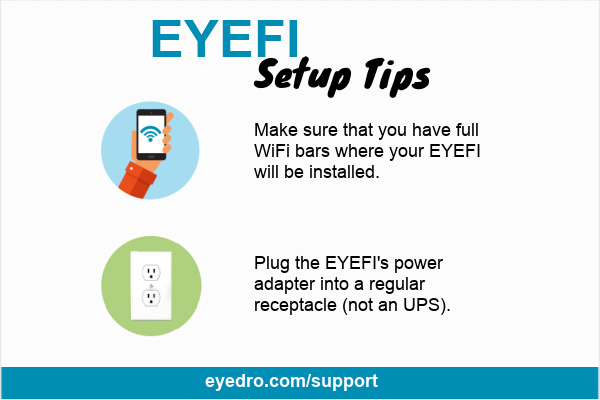
  2. Plug the EYEFI’s power adapter into a regular receptacle (not a UPS battery backup).
  3. If you have a dual band router select the credentials for your 2.4G band when setting up your EYEFI.
  4. When prompted for your WiFi Network name (SSID) and password enter the same information that you would give to a friend who wanted to use your network.
  5. Once you have told the EYEFI which network to communicate over, take the module back to your electrical panel and mount it on the wall beside the panel (never inside!). 
  6. Ensure that you have full WiFi bars at the spot where your EYEFI is installed.

[/et_pb_text][et_pb_image src="https://eyedro.com/wp-content/uploads/2021/10/eyefi-setup-tips-blk-border-533×800-1.png" alt="EYEFI Setup Tips" title_text="EYEFI Setup Tips" url_new_window="on" align="center" disabled_on="off|off|off" admin_label="EYEFI Setup Tips Image" _builder_version="4.11.4" _module_preset="default" custom_margin="10px||||false|false" custom_padding="4px||4px||false|false" hover_enabled="0" border_color_all="#8F8F8F" box_shadow_style="preset3" box_shadow_spread="1px" global_colors_info="{}" sticky_enabled="0"][/et_pb_image][et_pb_text admin_label="Energy Monitoring Made Easy Text" _builder_version="4.9.4" _module_preset="default" custom_margin="||25px||false|false" custom_padding="10px||4px||false|false" global_colors_info="{}"]

Energy Monitoring Made Easy

[/et_pb_text][et_pb_text admin_label=”Connection Type Heading H2″ _builder_version=”4.11.4″ _module_preset=”default” custom_margin=”27px||||false|false” custom_padding=”0px||1px||false|false” box_shadow_style=”preset3″ box_shadow_horizontal=”-1px” box_shadow_vertical=”18px” box_shadow_blur=”23px” box_shadow_spread=”-2px” global_colors_info=”{}”]

EYEFI Setup via Desktop or Mobile

[/et_pb_text][et_pb_text admin_label=”Connect via Desktop Text” _builder_version=”4.11.4″ _module_preset=”default” text_font=”|600|||||||” text_font_size=”15px” min_height=”61px” custom_padding=”31px||2px||false|false” global_colors_info=”{}”]

For more information about connecting your EYEFI system via desktop:

    [/et_pb_text][et_pb_video src="https://youtu.be/7ExuAsWK6MI" image_src="https://eyedro.com/wp-content/uploads/2021/10/eyefi-connection-desktop-youtube-thumbnail.png" admin_label="Connect via Desktop Video" _builder_version="4.11.4" _module_preset="default" min_height="543px" custom_margin="-5px|||||" hover_enabled="0" db_limit_youtube_related_videos_to_same_channel="on" global_colors_info="{}" alt="EYEFI Connection via Desktop Computer" title_text="EYEFI Connection via Desktop Computer" sticky_enabled="0"][/et_pb_video][et_pb_text admin_label="Connect via Mobile Text" _builder_version="4.11.4" _module_preset="default" text_font="|600|||||||" text_text_color="#008eb5" text_font_size="15px" min_height="20px" custom_padding="14px||0px||false|false" global_colors_info="{}"]

    For more information about connecting your EYEFI system via mobile:

      [/et_pb_text][et_pb_video src="https://youtu.be/AenTukv0Tc4" image_src="https://eyedro.com/wp-content/uploads/2021/10/eyefi-connection-mobile-thumbnail-1280×768-1.jpg" admin_label="Connect via Mobile Video" _builder_version="4.11.4" _module_preset="default" min_height="516px" custom_margin="||36px|||" hover_enabled="0" db_limit_youtube_related_videos_to_same_channel="on" global_colors_info="{}" sticky_enabled="0"][/et_pb_video][et_pb_text admin_label="Connection Type Heading H2" _builder_version="4.11.4" _module_preset="default" min_height="33px" custom_margin="27px||||false|false" custom_padding="12px||1px||false|false" box_shadow_style="preset3" box_shadow_horizontal="-1px" box_shadow_vertical="18px" box_shadow_blur="23px" box_shadow_spread="-2px" global_colors_info="{}"]

      More Technical Information

      [/et_pb_text][et_pb_text admin_label=”Support pages link Text” _builder_version=”4.11.4″ _module_preset=”default” text_font=”|600|||||||” text_font_size=”15px” min_height=”92px” custom_padding=”26px||0px||false|false” link_option_url_new_window=”on” hover_enabled=”0″ global_colors_info=”{}” sticky_enabled=”0″]

      Manuals, videos, FAQs and troubleshooting:

      Eyedro Support

        [/et_pb_text][/et_pb_column][/et_pb_row][/et_pb_section]

        Picture of Stacey McCuaig

        Stacey McCuaig

        Share this Article: