
Device Info
To view the information for a device, navigate to the Devices Configuration plugin and select the desired device from the list.
Device Info (Active)
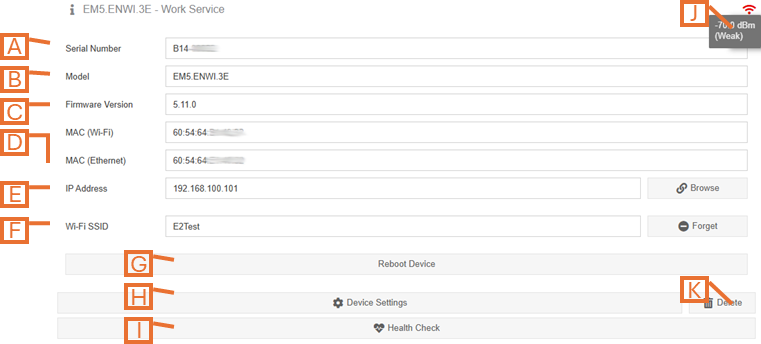
- Serial Number. Displays the serial number of the selected device.
- Model (advanced). Displays the model number for the selected device.
- FW Version. The current firmware version. NOTE: If a newer version is available, an Update Firmware button will become visible directly beside this field (not shown).
- MAC (advanced). MAC address of the device. NOTE: Devices with multiple methods of connectivity may have more than one MAC Address shown.
- IP Address (advanced). Displays the last IP Address assigned to the device (local network IP Address). For devices with onboard webservers, you can click the Browse button to open a browser tab to display the devices onboard dashboard. NOTE: The device used to access MyEyedro (i.e. your laptop, phone, etc.) must be connected to the same local network as the device in order to use the Browse function.
- Wi-Fi SSID (advanced). The ‘name’ of the Wi-Fi network currently connected to. Click Forget to clear the provisioned settings from the device. NOTE: If the device is connected by Ethernet and no Wi-Fi network settings exist, a Setup Wi-Fi Connectivity button will become visible below this field (not shown). It can be used to send Wi-Fi credentials to the device.
- Reboot Device (advanced). Click to perform a soft reset on the selected device.
- Device Settings. Click this button to launch the device settings editor.
- Health Check. Click this button to launch the health check dialog. NOTE: The Health Check is not available for all types of devices.
- Wireless signal quality. Displays the most recent wireless signal quality reported. The icon changes colour depending on quality/strength. Hover over the icon to see the numerical representation. NOTE: Only visible for devices connected wirelessly.
- Delete device button. Click this button to delete the selected device.
- Calibrate Temperature (not shown). For temperature monitoring devices, a button will be provided to launch the calibration dialog.
IMPORTANT: Not all fields and features are available for all types of devices.
NOTE: Screenshot above is taken with the Show Advanced Info option checked in the plugin options.
Device Info (Inactive)
If the selected device is inactive (powered off and or not connected to the internet), the
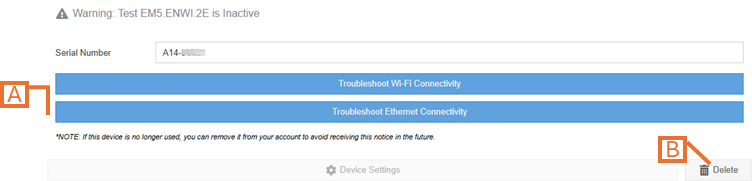
- Troubleshoot Connectivity. Depending on the available connectivity methods that are available on the selected device, different buttons will be provided to troubleshoot the connectivity.
- Delete device button. Click this button to delete the selected device. If the device is no longer in use, you can remove it from your list. NOTE: by removing the device, you will no longer have access to any of the historically collected data.