
Renewable Generation Ranking | MyEyedro User Guide
The Renewable Generation Ranking report type provides a ranked list of all Display Groups/Sites included in the assessment along with relevant generation and revenue metrics.
Report profiles can be created and modified in the MyEyedro Report Configuration plugin and all generated reports can be viewed in the MyEyedro Report Viewer plugin.
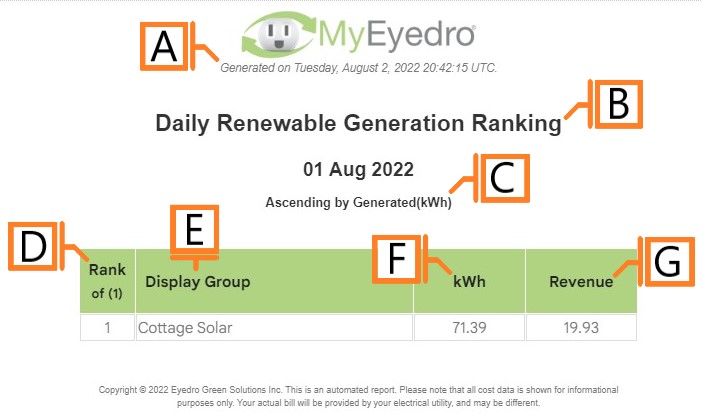
- Generation Date. The date and time the report was generated.
- Report Title. This is a combination of the report title text and report period as defined in the report configuration options.
- Ranking Method. The method and direction of the ranked results.
- Rank. Display groups rank based on the ranking method configured.
- Display Group. Label of the ranked display group.
- Generated. The total power generation by the display group during the reporting period.
- Revenue. The total revenue recognized by the display group during the reporting period.
Configuration Options

- Sorting Method. The property on which to rank each Display Group. Choose one of Alphabetically, by Generation or by Revenue.
- Sort Direction. The direction to sort row entries according to Sorting Method (i.e. ascending/descending).
NOTE: Common report configuration options are not shown:
- Report Type. Specify the type of report to generate. Choose Renewable Generation Ranking.
- Report Grouping. Specify whether the report will use Display Groups or Sites as a data source. NOTE: Renewable Generation Ranking reports only support Display Groups.
- Report Period. The time frame which the Report will evaluate. Choose one of Daily or Weekly.
- Report Title. Used to easily identify what this Report Profile is being used for.
- Include All Display Groups. Ensure this option is checked to include all Display Groups in the report.
- Display Group to. Allows you to specify a list of Display Groups to include or exclude from the report. NOTE: This option is not available if the Include All Display Groups option is checked.
- Scheduled. Automatically generates a report on the scheduled start day and each period there after.
- Effective Date. The first date your report is scheduled to run. NOTE: this option is only visible for scheduled reports.
- Email Recipients. The Email addresses you wish a copy of the scheduled report to automatically be sent to. NOTE: this option is only visible for scheduled reports.