Device License Keys | MyEyedro User Guide
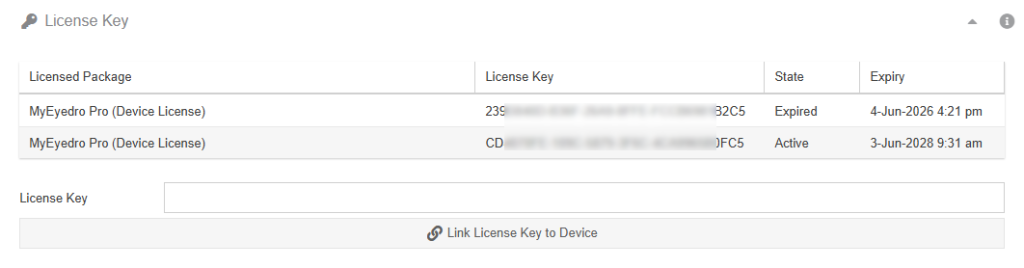
License Keys can be added to your account to unlock additional features. An example would be a MyEyedro Professional license to unlock features like threshold alerts and additional plugins and reports. To view or modify Device License Keys, navigate to the Devices Configuration plugin and select the desired device from the list.

- Expand or Collapse the panel.
- Hover over the Information button to see pop-up tips.
- License List. Lists all licenses currently associated with the selected device.
- License Key. To add a new license, enter the provided License Key in the text field.
- Click Link License Key to Device button to assign the license to the device.
NOTE: Alternatively, license keys (of any type) may be viewed or added from the User Configuration plugin using the methods described here in this manual.
Add a MyEyedro Pro Device License
To add a new MyEyedro Pro license to an Eyedro device, follow the steps outlined below.
NOTE: These instructions assume:
- You have already purchased a MyEyedro Pro license. If not, one can be purchased here.
- You are adding the license to a device for the first time OR replacing an expired license.
- IMPORTANT: If the purpose is to extend or renew an existing active license, it is important to note that this can only be done within 60 days of the license’s expiry date.
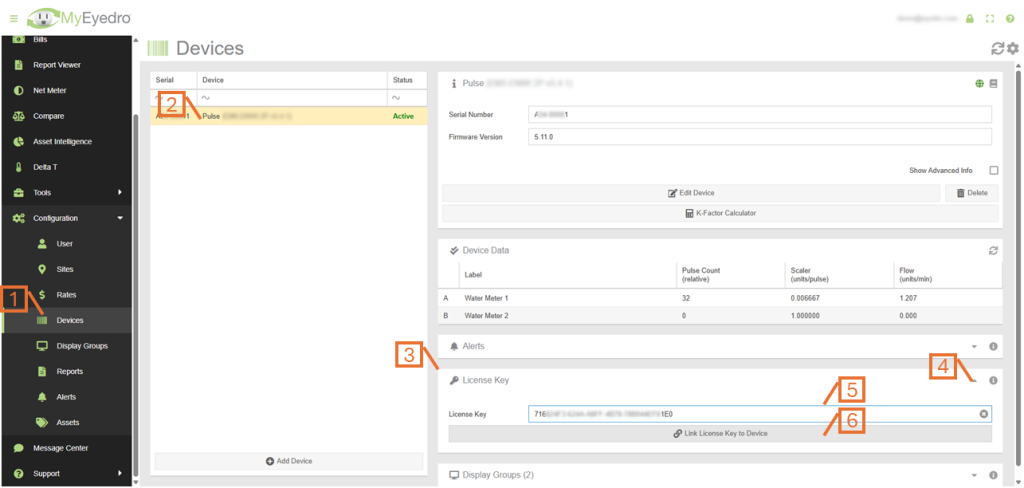
- From MyEyedro, browse to the Devices Configuration plugin.
- Select a Device from the list that you want to assign your MyEyedro Pro license.
- If necessary, scroll down to find the License Key panel on the right side of the screen.
- If not already done, expand the License Key panel by clicking on the down chevron icon.
- Enter your license key into the License Key field.
- NOTE: Your license key will look similar to “A1B2C3D4-E5F6-G7H8-I9J0-K1L2M3N4O5P6”.
- Click on the Link License Key to Device button.
- Upon successful completion, you will be presented with a prompt to re-login to MyEyedro to enable any new features that result from the new license.
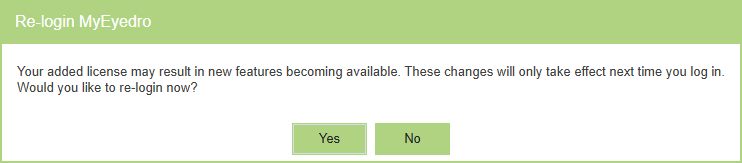
- Click the Yes button to log out and be redirected to the login screen.
- Alternatively, click the No button if you have more licenses to add. Added features will not become available until the next time you explicitly log in.
- NOTE: a simple page refresh may not enable all new features and functions associated with the new license. It must be an explicit logout followed by a login.
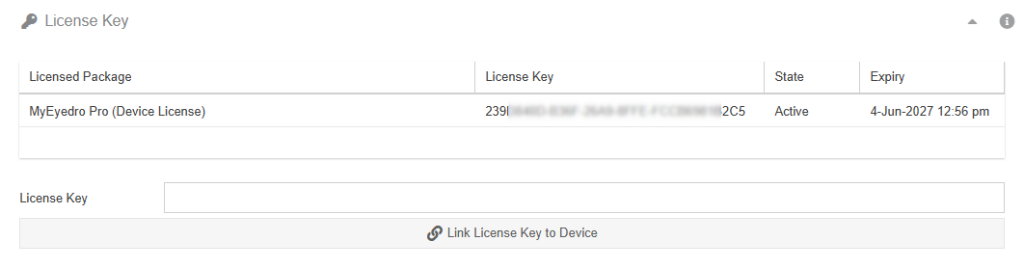
Next time you log into MyEyedro, your new license will appear in the License Key panel for the device.
Extend a MyEyedro Pro Device License
To extend a MyEyedro Pro license that is about to expire (within 60 days), follow the steps outlined below.
NOTE: These instructions assume:
- You have already purchased a MyEyedro Pro license. If not, one can be purchased here.
- An extension will replace the original license with the new one, extending the expiry date of the new license by the number of full days remaining on the original license.
- IMPORTANT: License extension can only be performed within 60 days of an Active license’s expiry date.
- From MyEyedro, browse to the Devices Configuration plugin.
- Select a Device from the list that you want to assign your MyEyedro Pro license.
- If necessary, scroll down to find the License Key panel on the right side of the screen.
- If not already done, expand the License Key panel by clicking on the down chevron icon.
- NOTE: You should see an existing “MyEyedro Pro (Device License)” item in your License Key list.
- Enter your license key into the License Key field.
- NOTE: Your license key will look similar to “A1B2C3D4-E5F6-G7H8-I9J0-K1L2M3N4O5P6”.
- Click on the Link License Key to Device button.
- You will be prompted with a dialog indicating that the device already has a license that matches the new type.
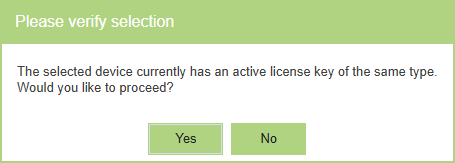
- Click on the Yes button to assign the new license to the device.
- This will replace the original license with the new one, extending the expiry date of the new license by the number of full days remaining on the original license.
- Alternatively, click on the No button to abort. However, This will result in the License Key being assigned to the user but not linked to a device. To use this license for a different device, this can be done in the User Configuration plugin later.
- Upon successful completion, you will be presented with a prompt to re-login to MyEyedro to enable any new features that result from the new license. Click the Yes button to re-login.
Next time you log into MyEyedro, your new license will appear in the License Key panel for the device. The old, now expired license, will disappear from the list after several minutes.