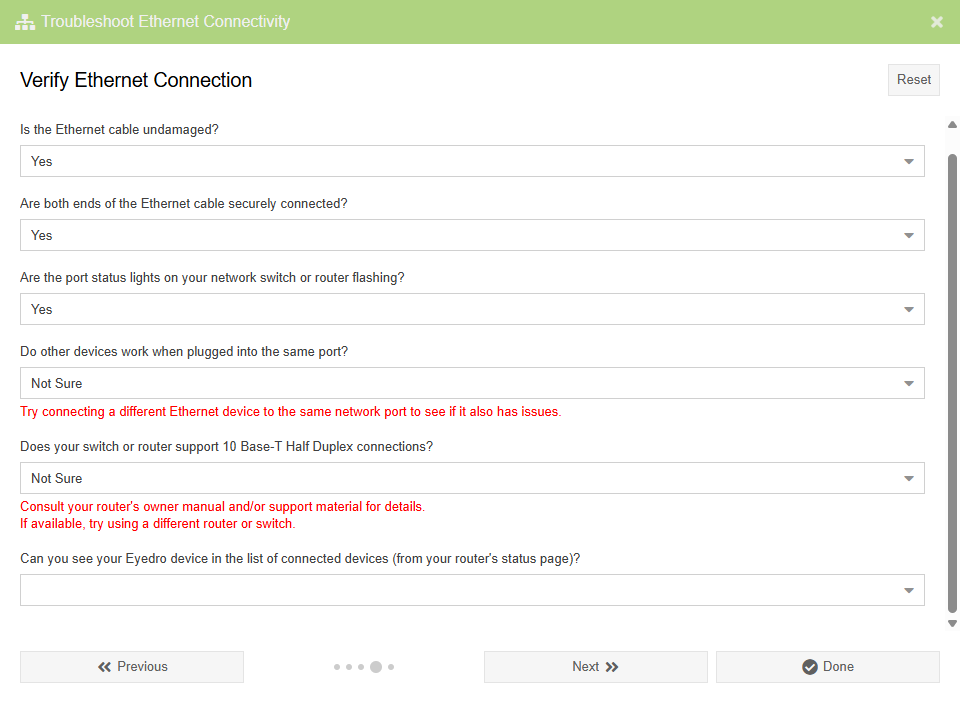
Device Installation
Device Installation must be done prior to adding the device to your user account.
Device installation instructions can be found in the Quick Start guide, provided in the box with your product, or in the detailed product guide (links below).
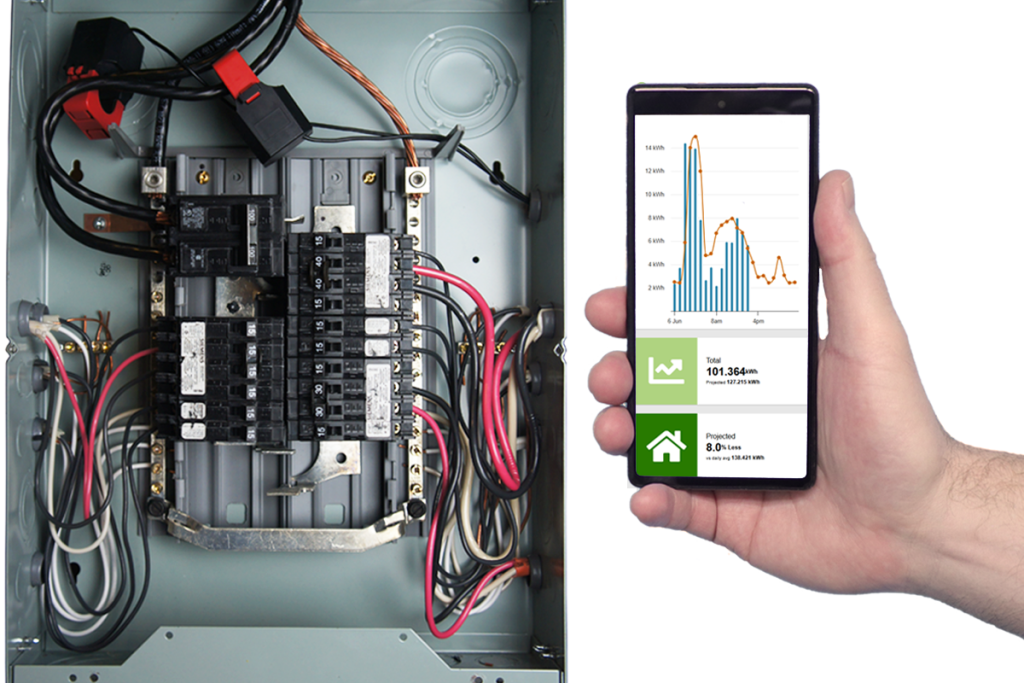
IMPORTANT: Hardware installation may vary slightly depending on the generation of hardware used. The links below are for the most recent versions of Eyedro products.
Product Guides
Commercial/Industrial Products
3-Phase Energy Meter (e.g. EB6-*)
Inline Power Meter (e.g. ILM-*)
Flow Meter (e.g. E5B-*-PM)
Temperature Meter (e.g. E5B-*-TM)
Residential Products
Home Energy Monitor (EYEDRO-HOME)
Troubleshooting Wi-Fi Setup
When adding a device to your MyEyedro user account, if the device is not communicating with the internet you will be presented with options to help troubleshoot. These wizards help troubleshoot common setup issues.
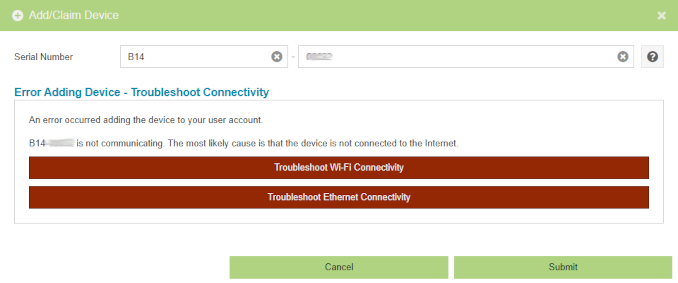
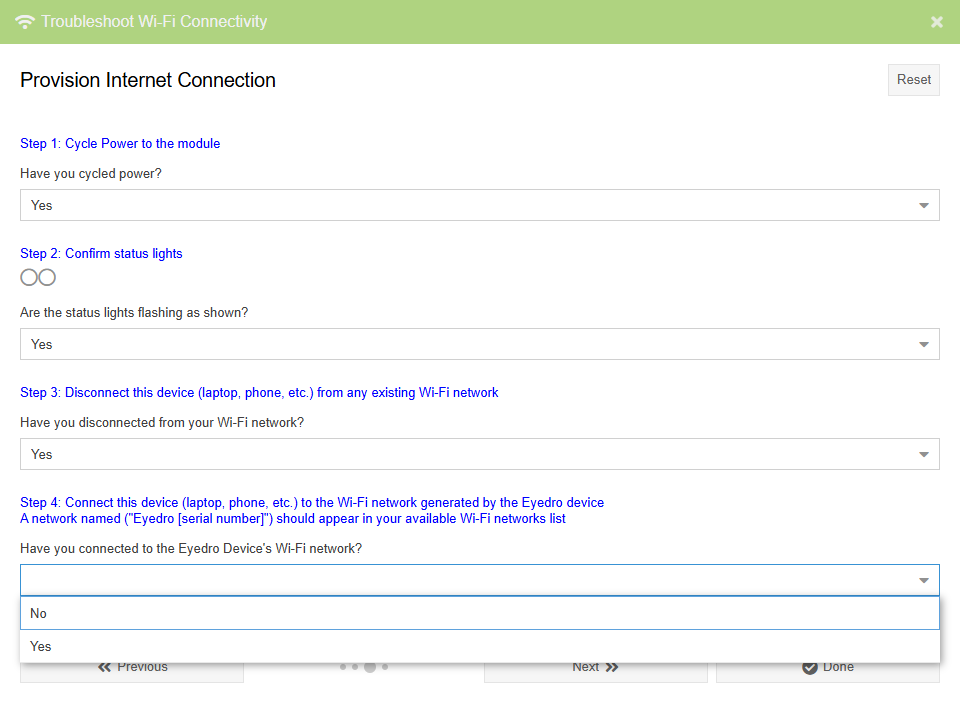
For devices with Wi-Fi, this wizard will walk the user through verifying power, checking status lights (on devices where available), and provisioning the onboard Wi-Fi so the device can communicate with the internet.
For inactive devices that are already installed on your user account, the troubleshooting wizard is also accessible from the device info panel.
PRO TIP: The device info panel can also be used to send Wi-Fi credentials to a device that is connected by an Ethernet cable. See the Setup Wi-Fi Connectivity button description for details. This is very helpful for cases where, for various reasons, you just aren’t able to provision it using your phone or laptop.
PRO TIP: An alternative method to provision your Wi-Fi connection is to create an Internet hotspot using an available cell phone. This can be used to rule out an incompatibility between the Eyedro device and the network equipment you are attempting to connect to.
Additional Wi-Fi Troubleshooting Resources
Troubleshooting Ethernet Setup
When adding a device to your MyEyedro user account, if the device is not communicating with the internet you will be presented with options to help troubleshoot. These wizards help troubleshoot common setup issues.
For devices with Ethernet, this wizard will walk the user through verifying power, observing status lights (on devices where available), and checking the Ethernet connection so the device can communicate with the internet.
For inactive devices that are already installed on your user account, the troubleshooting wizard is also accessible from the device info panel