Getting Started with Assets
Getting started with assets is a simple process. Assets are used to compute and analyze run-state information for pieces of equipment.
To get started using assets, follow these steps outlined below.
Step 1: Add a Device
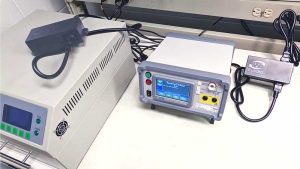
A device is a physical piece of Eyedro monitoring hardware. For asset monitoring, this is typically an Eyedro Inline Power Meter installed on the power cord of the device to be monitored. Alternatively, this can be any Eyedro Electricity Monitor (single-phase or 3-phase) as long as it is installed on an isolated circuit or sub-panel for the equipment to be monitored.
To add a device, browse to the Devices configuration plugin in MyEyedro and follow the steps found here.
IMPORTANT: Only devices with MyEyedro Pro licenses can be used for asset analysis.
Step 2: Create a Display Group
A display group is a grouping of device sensors for presentation in MyEyedro plugins. Display Groups provide flexibility as they can be used to separate sensors of a single device or combine sensors, of the same type, from multiple devices for presentation purposes.
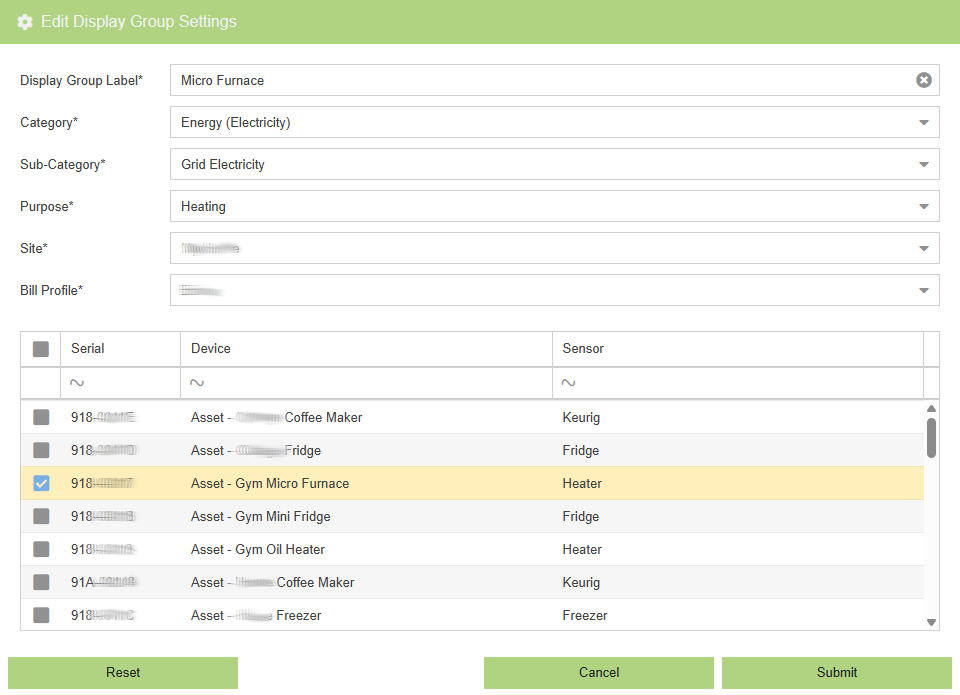
Display groups used for asset monitoring are usually a 1-to-1 mapping of an Eyedro Inline Power Meter device but, in the event of a branch circuit or panel monitoring device, this may be one (or more) sensors from an Eyedro Electricity Monitor (either single-phase or 3-phase).
To add a display group, from the new device (step 1), navigate to the Display Groups configuration plugin and follow the steps found here.
IMPORTANT: A display group must exist for every asset you want run-state information for. Do not create a single display group and put all of your device sensors in it for asset monitoring.
Step 3: Create an Asset Profile
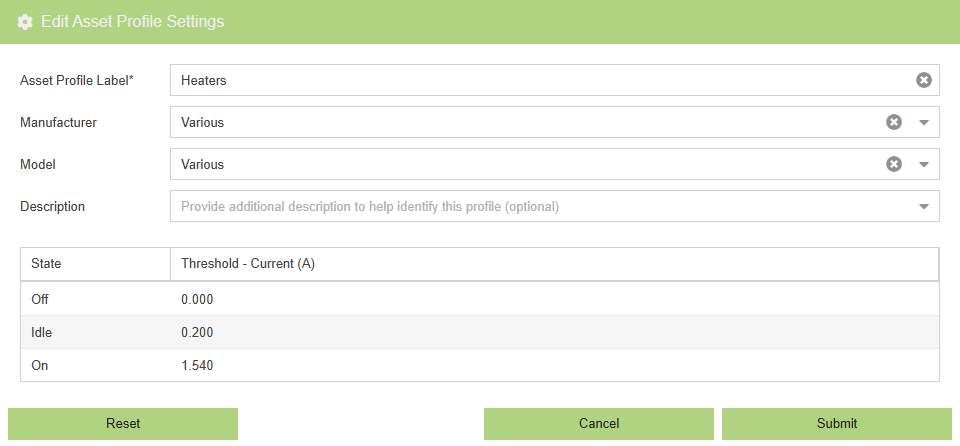
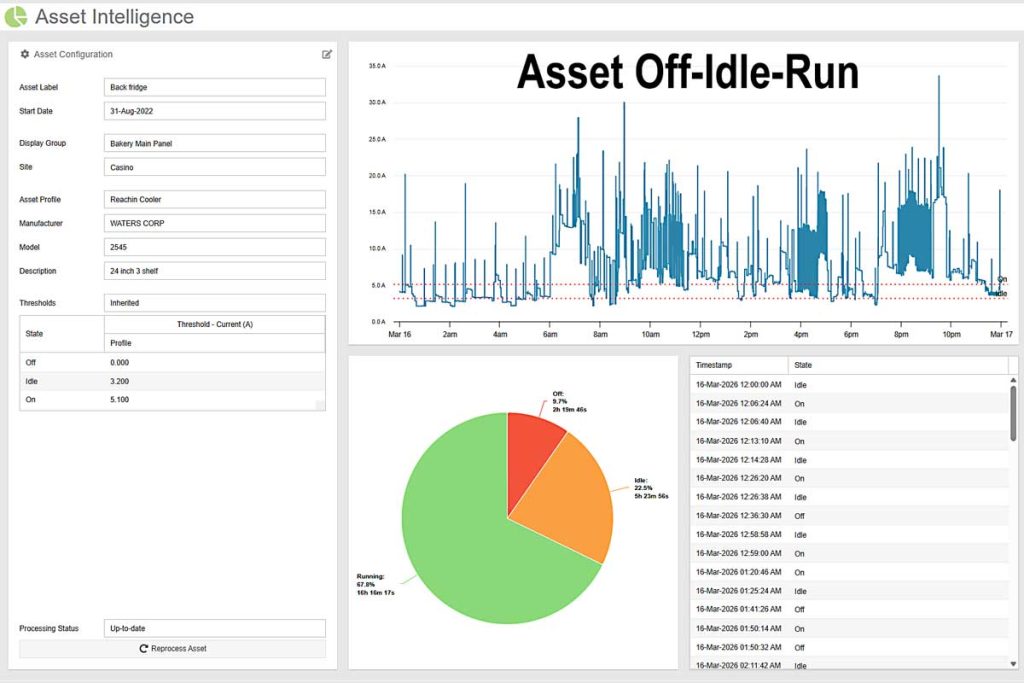
An asset profile is a grouping of common assets (machines, equipment, appliances, etc.) from which baseline current draw can be established for each of the various run-states (Running/Idle/Off).
To add an asset profile, navigate to the Assets configuration plugin in MyEyedro and follow the steps found here.
PRO TIP: Asset Profiles may be created for a specific model of equipment (i.e. Acme Inc’s model XYZ machine) OR a more common grouping of similar equipment (i.e. Refrigeration, Electric Heaters, etc.). A single asset profile may have many assets associated with it that share these common properties.
Step 4: Add an Asset
An asset represents a physical piece of equipment that matches the parameters defined in the asset profile.
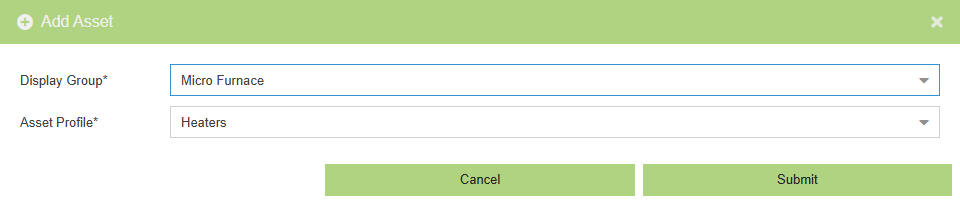
To add an asset, navigate to the Assets configuration plugin in MyEyedro and follow the steps found here. Use the display group (step 2) and the asset profile (step 3) for the new asset.
IMPORTANT: When adding an asset, only display groups comprised of devices with MyEyedro Pro licenses will be available for selection.
IMPORTANT: After adding your new asset, you will see “Waiting to process” indicated in the asset’s processing status. It may take several minutes for the initial run-state analysis to complete. At which time the processing status will change to “Up-to-date” and the results can be viewed.
PRO TIP: Assets have the ability to override the common run-state thresholds inherited from the parent asset profile.
Step 5: View Run-State Information