Bills | MyEyedro User Guide
The MyEyedro Bills plugin displays summaries of estimated costs and billing information for all sensors of a specified Display Group. Estimated costs are based on consumption data collected and rate configuration applied. The Bills view provides:
- Comprehensive Billing Intelligence: Seamlessly navigate your financial history with a Billing History Graph that tracks cost and consumption across multiple periods for easy year-over-year comparisons.
- Predictive Financial Forecasting: Take the surprise out of your utility statement with Estimated Bill Totals that use your historical data and current pace to project your final month-end costs.
- Drill-Down Daily Breakdowns: Transform a single bill into actionable insights by clicking any period to view Daily Bill Details, featuring interactive tooltips that reveal exact cost and usage spikes.
IMPORTANT: Please note that all cost data is shown for informational purposes only. Your actual bill will be provided by your utility service provider, and may be different.
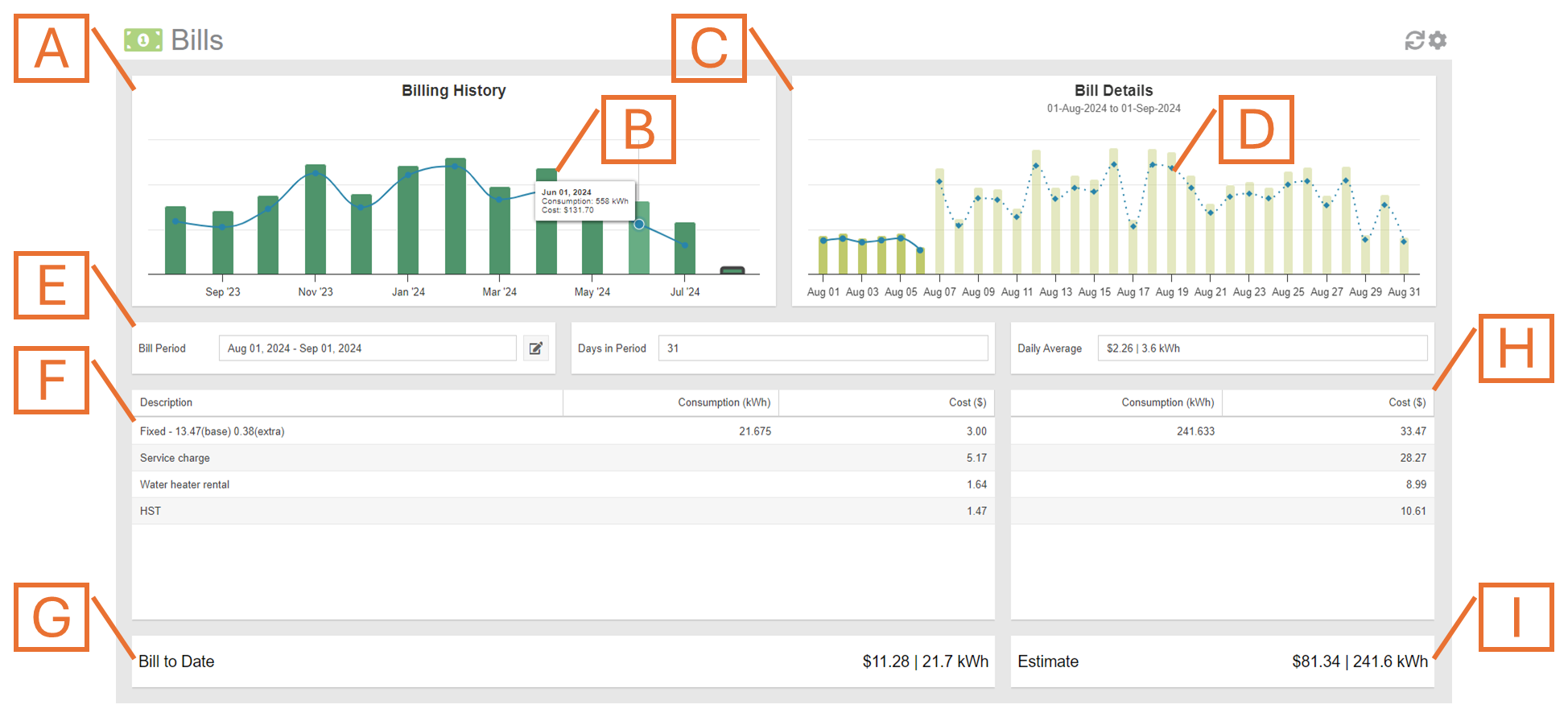
- Billing History Graph. Displays total cost and consumption of the last several billing periods.
- Billing Period. Click on a specific Billing Period in the Billing History Graph to retrieve details for that particular period.
- Bill Details Graph. Displays cost and consumption information for each day in the selected Billing Period. If displaying the current period, this graph displays estimated consumption and cost for any dates in the future. NOTE: Estimates are based on measured and historical consumption.
- Daily Bill Details. Hover over any of the columns to display a tooltip detailing consumption and cost breakdown details for that day.
- Bill Period Statistics. Date range, number of days and average cost and consumption for the selected Billing Period. NOTE: The edit button beside this field allows you to adjust the start date for computed bills to align with those from your utility bill. Instructions provided below.
- Billing Period Details. Displays consumption and cost breakdown based on rates provided in Rate Settings for the Display Group.
- Billing Period Total. Displays the total consumption and cost for the selected bill period.
- Estimated Bill Details. If viewing the current Billing Period, displays the estimated bill projection for the current period. NOTE: Estimates are based on measured and historical consumption.
- Estimated Bill Total. If viewing the current Billing Period, displays the estimated total bill for the current period. NOTE: Estimates are based on measured and historical consumption.
Bills Plugin Tools and Options
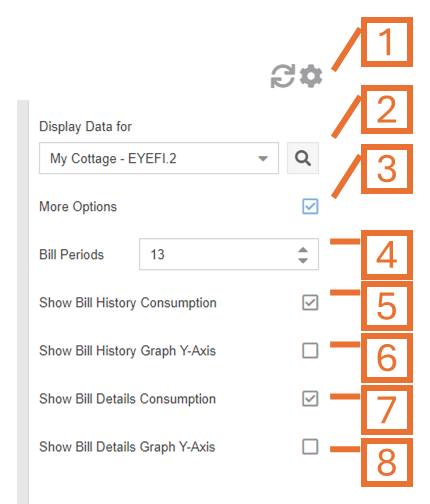
- Plugin Tools:
- Refresh. Update the data and visuals on screen.
- Options. Expand or collapse the options menu.
- Select which Display Group to evaluate. NOTE: Only display groups comprised of electricity, gas or water monitoring devices are available in this plugin.
- Check the More Options checkbox to show additional options.
- Specify the number of bill periods you want displayed in the Billing History graph.
- Toggles the consumption series (blue line) on the Billing History Graph.
- Toggles the Y-axis labels on the Billing History Graph.
- Toggles the consumption series (blue line) on the Bill Details Graph.
- Toggles the Y-axis labels on the Bill Details Graph.
Adjusting Bill Periods
To view cost information for a specific period (i.e. to generate an approximation for your actual utility bill period), follow the instructions outlined below.

- Click on the Edit button beside the Bill Period field
- Locate the row that represents the oldest bill you would like to edit the start date of
- Double click on the row to edit it
- Adjust the Period Start date value
- Click on the check mark button to save the edits to the row
- NOTE: Adjusting the Period Start date of one row will automatically update the Period End date of the previous row
- IMPORTANT: All rows after the adjusted row will use the edited start date
- Repeat steps 2 through 5 for any additional bill periods you would like adjusted
- Click on the Close and Reload Bills button to close the dialog and return to the Bills plugin
IMPORTANT: If at any point you edit the Rates associated with this Display Group, all bill estimates will be recalculated. This will result in loosing any edited dates set using this method.
PRO TIP: You can also use the Consumption plugin to obtain cost information for a specific period.
Mobile View