
Change Wi-Fi | Troubleshooting Guide
Wi-Fi network name or password has been changed and your Eyedro device is no longer able to connect, you will need to change the Wi-Fi connection settings for your device. To do this, follow one of the methods listed below.
Scenario 1: Wi-Fi network name (SSID) has changed
If your Wi-Fi network name (SSID) has changed, the device will no longer be able to connect to the internet. If this is the case, you should be able to follow the same procedure originally used to provision your Eyedro device.
- Cycle power to your Eyedro device by unplugging the power adapter and then plugging it back in.
- Wait approximately 10 seconds for the device to go through it’s startup procedure.
- Once powered up and ready, ensure both the red and green device lights are flashing on and off together at a 2 second interval (Green and red lights on for 2 seconds, off for 2 seconds). This indicates that your device has created it’s own Wi-Fi network and is waiting for connection. At this point you should see the network created by the device in your available Wi-Fi networks list.
- Follow the Wi-Fi provisioning procedure for your device:
- Home Energy Monitor (EYEDRO-HOME)
- 3-Phase Energy Meter (e.g. EB6-*)
- Inline Power Meter (e.g. ILM-*)
- Flow Meter (e.g. E5B-*-PM)
- Temperature Meter (e.g. E5B-*-TM)
Scenario 2: Wi-Fi password has changed (SSID is still the same)
If your Wi-Fi password has changed, but the network name (SSID) remains the same, the device will no longer be able to connect to the internet. Follow the instructions below to provision your Wi-Fi connection.
Method 1 (Recommended): Provision Wi-Fi using temporary Ethernet connection
- Disconnect power from the Eyedro device.
- NOTE: If necessary take the Eyedro device, and its power adapter, to a nearby network router or switch if you do not have an Ethernet connection at the installation location.
- Connect an Ethernet cable between the Eyedro device and an open network port.
- Apply power to the Eyedro device.
- Wait approximately 10 seconds for the device to go through it’s startup procedure.
- Once powered up and ready, ensure the green device light is flashing on and off at a 2 second interval (Green light on for 2 seconds, off for 2 seconds). This indicates that your device is successfully connected to the internet.
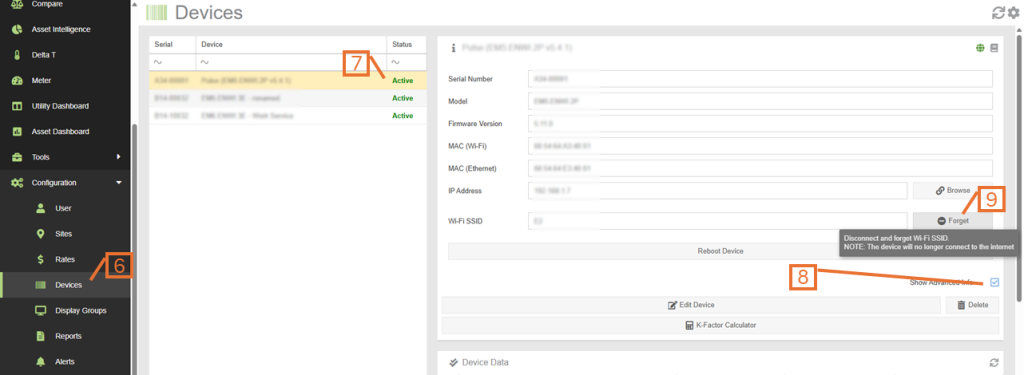
- From MyEyedro, browse to the Devices Configuration plugin.
- Select the Device from the list of devices.
- NOTE: The device status column should show “Active”
- From the Device Information panel, ensure the “Show Advanced Info” option is checked.
- Click on the Forget button beside the Wi-Fi SSID field.
- Provision the Wi-Fi settings while still connected using an Ethernet cable by continuing with the steps below.
- Alternatively, at this point, you can disconnect the Ethernet cable, cycle power and provision the device normally, as described above in Scenario 1.
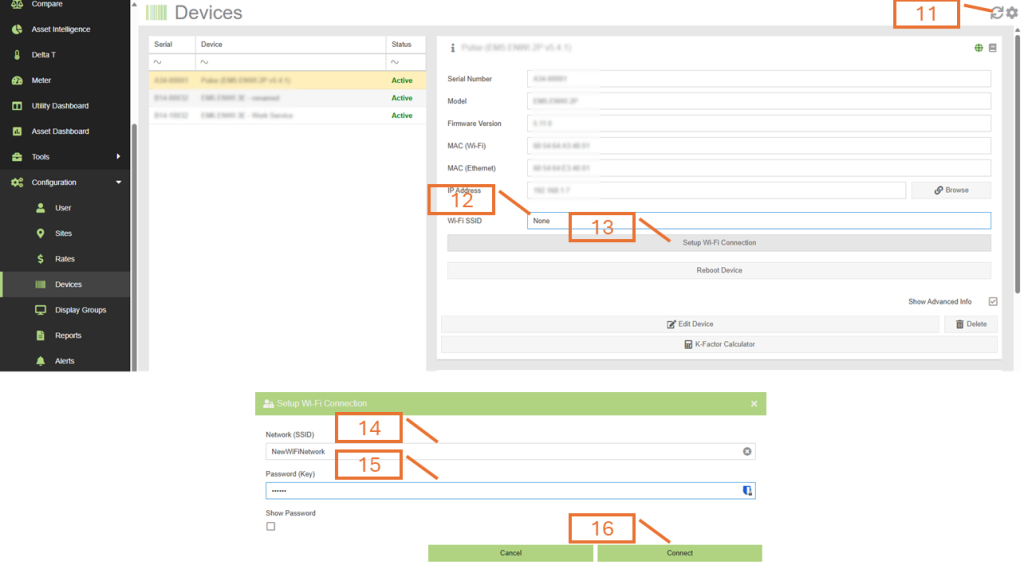
- Click on the Refresh button, in the top right.
- Ensure the Wi-Fi SSID field shows “None“.
- NOTE: It may take several seconds for the previous Forget command to make it down to the device and for it to reset. You may need to click on the Refresh button a couple times until the Wi-Fi SSID indicates “None”.
- Click on the Setup Wi-Fi Connection button.
- Enter the Network name (SSID) appropriate field. IMPORTANT: SSID is case sensitive.
- Enter the Password in the appropriate field. IMPORTANT: Password is case sensitive.
- Click on the Connect button.
- Disconnect the Ethernet cable from the Eyedro device.
- Cycle power to the Eyedro device.
- Wait approximately 10 seconds for the device to go through it’s startup procedure.
- Once powered up and ready, ensure the green device light is flashing on and off at a 2 second interval (Green light on for 2 seconds, off for 2 seconds). This indicates that your device is successfully connected to the internet.
- Click on the Refresh button (from step 11) and verify the following:
- The Status column for the selected device show Active
- The connection icon switches from a green globe to a wireless strength icon. NOTE: If you hover over this icon, it will show the wireless signal strength.
- If necessary, move the Eyedro device and its power adapter back to the original installation location and reconnect it.
Method 2: Temporarily disable your Wi-Fi network
- Turn off your Wi-Fi router.
- Alternatively, temporarily move your Eyedro device, with power adapter, far away from the Wi-Fi router so that it is out of range.
- Cycle power to your Eyedro device by unplugging the power adapter and then plugging it back in.
- Wait approximately 10 seconds for the device to go through it’s startup procedure.
- Once powered up and ready, ensure both the red and green device lights are flashing on and off together at a 2 second interval (Green and red lights on for 2 seconds, off for 2 seconds). This indicates that your device has created it’s own Wi-Fi network and is waiting for connection. At this point you should see the network created by the device in your available Wi-Fi networks list.
- Follow the Wi-Fi provisioning procedure for your device – With the exception noted below:
- Home Energy Monitor (EYEDRO-HOME)
- 3-Phase Energy Meter (e.g. EB6-*)
- Inline Power Meter (e.g. ILM-*)
- Flow Meter (e.g. E5B-*-PM)
- Temperature Meter (e.g. E5B-*-TM)
- EXCEPTION: When you reach the step where you choose the Wi-Fi network from the list, it will not be shown in the list – because you turned your router off. Instead:
- Click on the “Click here” link, from the note regarding hidden networks (at the bottom of the list).
- Enter the Network name (SSID) appropriate field. IMPORTANT: SSID is case sensitive.
- Enter the Password in the appropriate field. IMPORTANT: Password is case sensitive.
- Click on the Connect button.
- Turn on your Wi-Fi router and wait for it to go through its startup routine.
- Or, if you moved your Eyedro device, move it back to the original installation location.
- Cycle power to your Eyedro device.
- Once powered up and ready, ensure the green device light is flashing on and off at a 2 second interval (Green light on for 2 seconds, off for 2 seconds). This indicates that your device is successfully connected to the internet.