
Getting Started with Rates | MyEyedro User Guide
Utility companies are all different and the fee structures that they use to charge for their products and services vary between utilities and regions. These fee structures are typically a combination of various per unit fees consumption fees, peak demand charges, service fees, delivery charges, credits, taxes, etc. The fees are often difficult and overwhelming to understand. Follow the instructions outlined in this Getting Started with Rates, to quickly begin estimating your utility costs.

IMPORTANT: Please note that all cost data is shown for informational purposes only. Your actual bill will be provided by your utility service provider, and may be different.
Step 1: Compute the blended rate
Using one or more recent utility bills you can quickly compute a blended per unit cost, including all fees, that can be used for all cost estimates provided in the MyEyedro software.
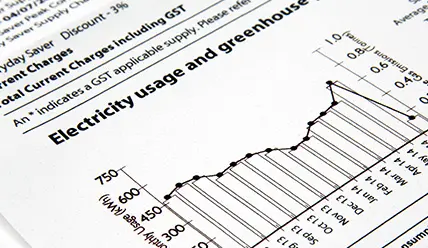
- Locate a recent utility bill. For this example, assume this is a recent electricity bill.
- Locate the dollar value charged for the period. For this example, assume the bill owing is $250.
- Locate the total units consumed for the period. For this example, assume a total of 1150 kWh was consumed.
- Compute the cost/unit by dividing the dollar value by the units consumed. For this example, $250/1150kWh = $0.217/kWh (21.7¢/kWh).
- Optionally, repeat steps a-d for a couple other recent billing periods.
- If using multiple billing periods, compute the average by summing the averages (computed in step d) and dividing by the number of periods (step e) to obtain a blended average.
Step 2: Update the default Bill Profile
- Open the Configuration plugin in MyEyedro.
- Select the default Bill Profile from the list in the top left and click Edit Bill Profile. If preferred, you can add a new Bill Profile rather than editing the default one. Do this by clicking Add Bill Profile instead.
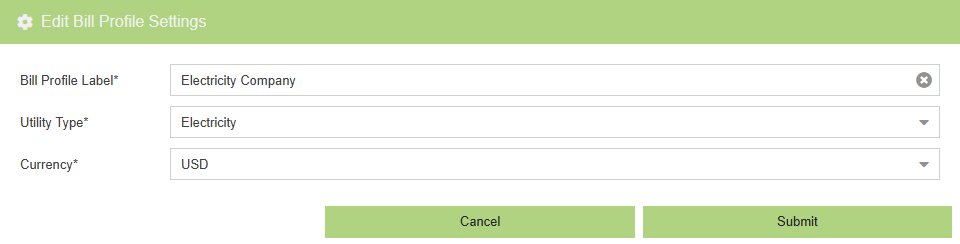
- Update the bill profile settings:
- Set the Bill Profile Label. For our example use “Electric Company”.
- Set the Utility Type. For our example, select “Electricity”.
- Set the local Currency. For our example, select “USD”
- Click Submit to complete the process.
Step 3: Update the default Rate Profile using the blended rate
- Open the Configuration plugin in MyEyedro.
- Select the default rate profile, from the list in the top right, and click the Edit Rate Profile button. NOTE: Every new Bill Profile includes a default Rate Profile. This default is automatically created for it with an effective date one year in the past (from the date the bill profile was created). If preferred, you can add a new Rate Profile rather than editing the default one. Do this by clicking Add Rate Profile instead.
- Edit the rate profile General Settings:
- Click the General Settings tab heading.
- Set the Effective Date for these rates to take effect.
- Set the Bill Frequency. For our example, select “Monthly”.
- Set the Rate Structure. For our example, select “Fixed”.
- Set the Number of Seasons. For our example, select 1 season to use the same fixed rates year-round.
- Edit the rate profile “All Year Rates”:
- Click the “All Year Rates” tab heading.
- Double click on the row that says “All Days“.
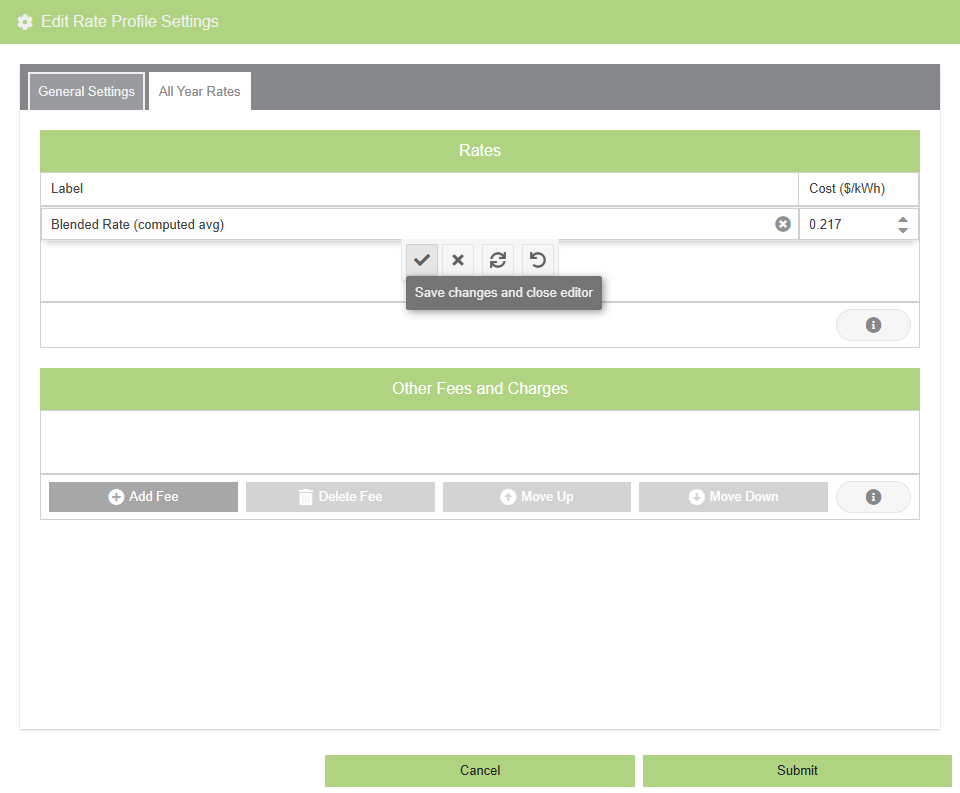
- Optionally, change the label of the row. For our example, change “All Days” to “Blended Rate”.
- Adjust the value in the Cost column to reflect the blended rate computed earlier. For our example, set this to 0.217.
- Click the Check Mark button to save the changes to the row
- Submit to complete the process.
IMPORTANT: Make sure the Effective Date value is set to a date before your hardware was installed. By default, a rate profile will be created one year from the day the bill profile was created to ensure this criteria is met. Failure to have rates defined for all of your history will result in failures when viewing your data in many MyEyedro plugins.
Step 4: Ensure all Display Groups are using these rates
If you updated the default bill profile in the steps above, you can skip this step. However, if you created a new bill profile, you will need to apply the new bill profile to any Display Groups belonging to your user account. Review the manual page Edit Display Group for details.
Optional: Create a more detailed rate profile
You will find that the instructions outlined above will give you reasonable cost estimates in MyEyedro Cloud. However, if you prefer to dive into the details of your utility bill, you can use the detailed rate information, provided by your utility provider, to configure more advanced rate profiles in MyEyedro.
- Find the fee structure from your utility
- Review the manual pages for rate configuration for details and videos to configure your rates
PRO TIP: Every utility provider is different. Often rate structures can be found on their public websites or links can be found directly on your utility bill. Contact your utility provider if you are unable to find this information.