
Add License Key | MyEyedro User Guide
To add a new license key to your user account and assign it to an Eyedro device, follow the steps outlined below.
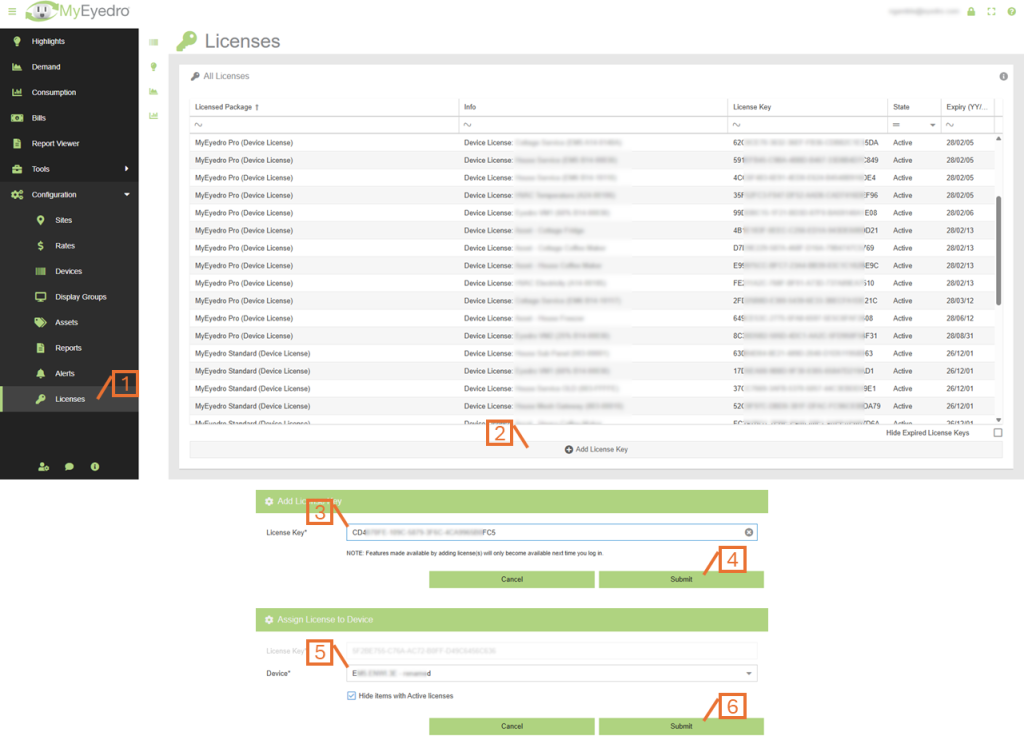
- From MyEyedro, browse to the Licenses Configuration plugin.
- Click on the Add License Key button.
- From the Add License Key form, enter the provided License Key in the text field.
- Click on the Submit button to add the license to your user account
- From the Assign License to Device form, choose the desired device from the list.
- If you are trying to extend the license of a device with an existing Active license, ensure the “Hide devices with Active licenses” option is unchecked so all devices appear in the list.
- Click on the Submit button to assign the license to the selected device.
- Alternatively, click on the Cancel button to abort. However, This will result in the License Key being assigned to the user but not linked to a device. This new license can be assigned at a later time in the Licenses Configuration plugin.
After successfully adding a license, you will be prompted to do one of the following actions:
- Browse to User Preferences. Adding a license key may enable additional features in MyEyedro. Use the User Preferences plugin to enable desired features and reorder the items in your Plugin Selection Menu and, if applicable, your Favorites Toolbar.
- Re-Login to MyEyedro. New functionality will require you to log out and log back in to enable new features added with the new license key. IMPORTANT: A simple page refresh will not
- Add another License. Choose this option if you have other license keys to add. NOTE: After all license keys are added, don’t forget to log out of MyEyedro and log back in.