
Menu and Navigation Options | MyEyedro User Guide
The Menu and Navigations options are used to enable or disable the MyEyedro features based on your needs and preferences.
Customize MyEyedro Plugin Selection Menu
The Plugin Selection Menu appears along the left side of the screen. To customize the contents of this list follow the instructions below.
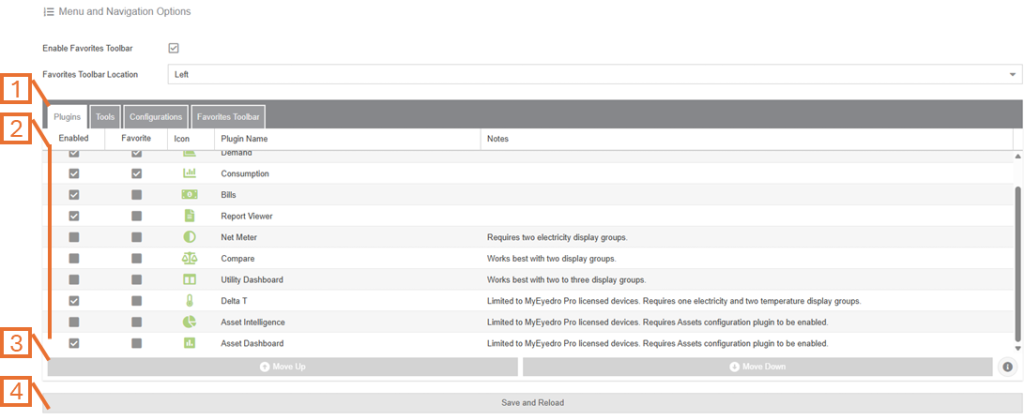
- Select the Plugins tab.
- Check or uncheck the Enabled column for the plugins you desire in your Plugin Selection Menu list.
- NOTE: Core configuration items; Sites, Rates, Devices and Display Groups can not be disabled.
- Use the Move Up and Move Down buttons to adjust the order of the plugin list.
- Repeat steps 1 through 3 for the Tools and Configurations tab.
- Click Save and Reload to finalize the changes and reload MyEyedro. NOTE: MyEyedro must be reloaded for the changes to take affect.
Add and Customize a Favorites Toolbar
The Favorites Toolbar is an optional toolbar that can be added and configured with the plugins, tools or configuration screens that are most used. To enable this toolbar and customize the contents follow the instructions below.
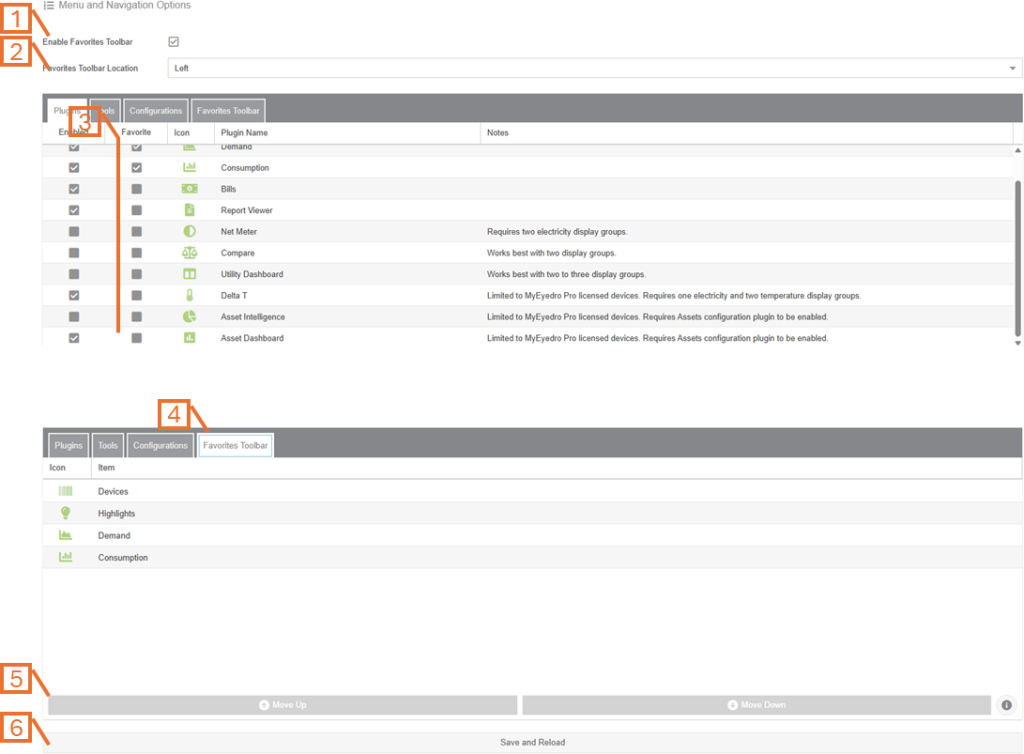
- Check or uncheck the Enable Favorites Toolbar option.
- Choose your desired Favorites Toolbar Location. This will dictate where the toolbar will appear relative to the Plugin Region. Options are Left, Right, Top or Bottom.
- Check or uncheck the Favorite column for each of the plugins, tools or configurations you desire in your Favorites Toolbar.
- Select the Favorites Toolbar tab.
- Use the Move Up and Move Down buttons to adjust the order of your favorites.
- NOTE: For favorite toolbars located on the top or bottom of the screen, the order of items on the tab will be rotated. Top will be equivalent to the left most item and bottom will be equivalent to the right most item.
- Click Save and Reload to finalize the changes and reload MyEyedro. NOTE: MyEyedro must be reloaded for the changes to take affect.