
Link License Key | MyEyedro User Guide
If you have previously added a license key to your account but have yet to link it to an Eyedro device, follow the steps outlined below.
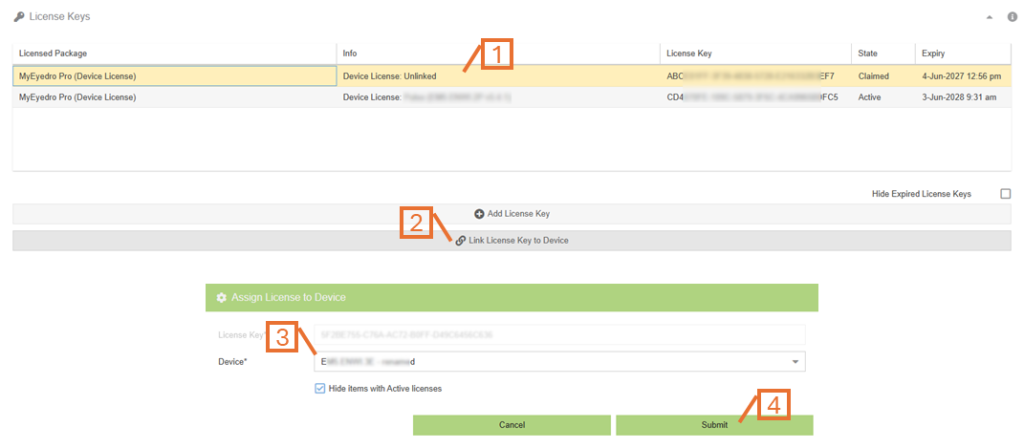
- From the License Keys panel of the Licenses Configuration plugin, select the desired license key from the list.
- The license key Info will contain the work “Unlinked” and the State will show “Claimed”. This indicates that there is a license that has not yet been assigned to a device
- Click on the Link License Key to Device button.
- From the Assign License to Device form, choose the desired device from the list.
- If you are trying to extend the license of a device with an existing Active license, ensure the “Hide devices with Active licenses” option is unchecked so all devices appear in the list.
- Click on the Submit button to assign the license to the selected device.
- Alternatively, click on the Cancel button to abort. However, This will result in the License Key being assigned to the user but not linked to a device. This new license can be assigned at a later time in the Licenses Configuration plugin.