
Add Asset Profile | MyEyedro User Guide
To add an asset profile, navigate to the Assets Configuration plugin. Click the ‘Add Asset Profile‘ button located below the profile list. This will open a form which is used to specify the details.
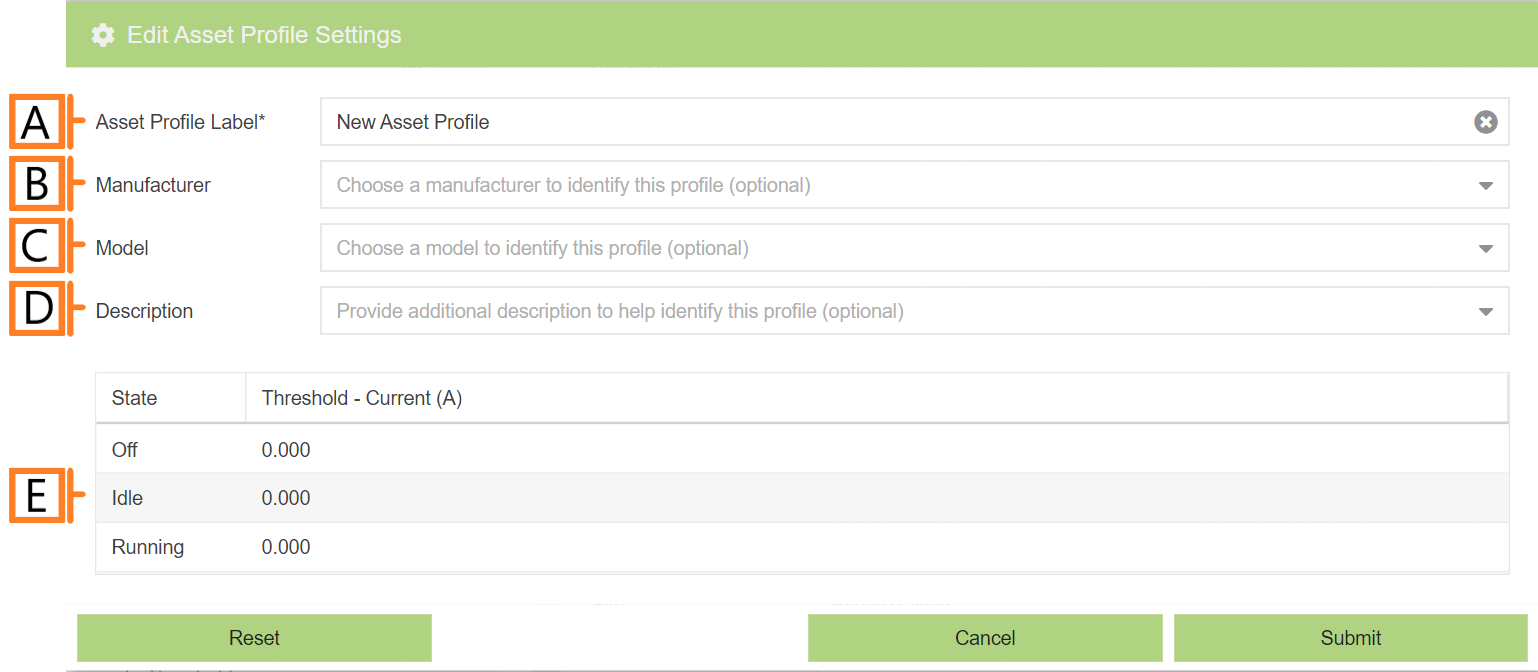
- Label. Label should be unique and descriptive for easy identification.
- Manufacturer (Optional).
- Model (Optional).
- Description (Optional).
- Run-State Thresholds. Adjust the thresholds used in the run-state analysis.
- NOTE: Double clicking on a row will allow you to edit the state threshold values.
- IMPORTANT: Editing this value will cause all assets associated with this profile to be reprocessed on completion.
- Hold Time (not shown). Adjusts the hold time used when analyzing state transitions. The results of the state processing will not allow a transition to a lower state within this delay. It is used to reduce noise in the processing results.
- NOTE: The default hold time is 300 seconds.
- IMPORTANT: Editing this value will cause all assets associated with this profile to be reprocessed on completion.
After you’re satisfied with the data entered, Click ‘Submit‘. The newly created asset profile will now appear in the list.